
Troubleshooting the Einstar Rocket: Fixing Connection, Tracking, and Scan Quality Problems
22nd May 2026
Even powerful handheld 3D scanners can run into problems when system configuration, lighting conditions, tracking environments, or software setup are not fully optimized. Connection failures, unstable tracking, noisy scans, and poor performance are some of the most common issues users encounter when first working with a handheld scanner.
In a recent troubleshooting walkthrough, UMAX demonstrated a complete professional diagnostic workflow for the Einstar Rocket, covering the most common scanning issues users face and the exact steps used to restore stable operation in real production environments.
Rather than focusing on a single problem, the guide explored the entire scanning pipeline from USB communication and GPU configuration to marker workflows, calibration, and difficult surface handling.
Why Handheld 3D Scanner Problems Happen
Many scanning issues are not caused by hardware failure at all. In most cases, instability comes from workflow conditions, incorrect system configuration, environmental lighting, or insufficient tracking references.
Modern handheld scanners rely heavily on several systems working together simultaneously, including high-speed USB communication, GPU acceleration, real-time geometry processing, stable lighting conditions, accurate tracking references, and proper software licensing and firmware communication.
When even one of these areas becomes unstable, scan performance can immediately degrade.
The Rocket troubleshooting guide focused on isolating these issues systematically rather than randomly changing settings.
Connection Problems and System Configuration
One of the first troubleshooting areas covered was scanner connection stability.
Many connection failures are caused by USB communication problems rather than the scanner itself. Third-party USB cables, USB hubs, extension cables, or docking stations can introduce intermittent disconnects or prevent proper device recognition entirely.
The guide emphasized the importance of using the original USB cable, connecting directly to motherboard USB 3 ports, enabling maximum performance power settings, and ensuring the system uses a dedicated Nvidia GPU for acceleration.
Antivirus software and firewall restrictions can also interfere with scanner communication or software activation during installation and firmware updates.
In production environments, GPU configuration is especially important because handheld scanners rely heavily on GPU acceleration for real-time processing. Systems using integrated graphics instead of dedicated Nvidia GPUs often experience frame drops, unstable performance, or failed initialization.
Driver and Firmware Issues
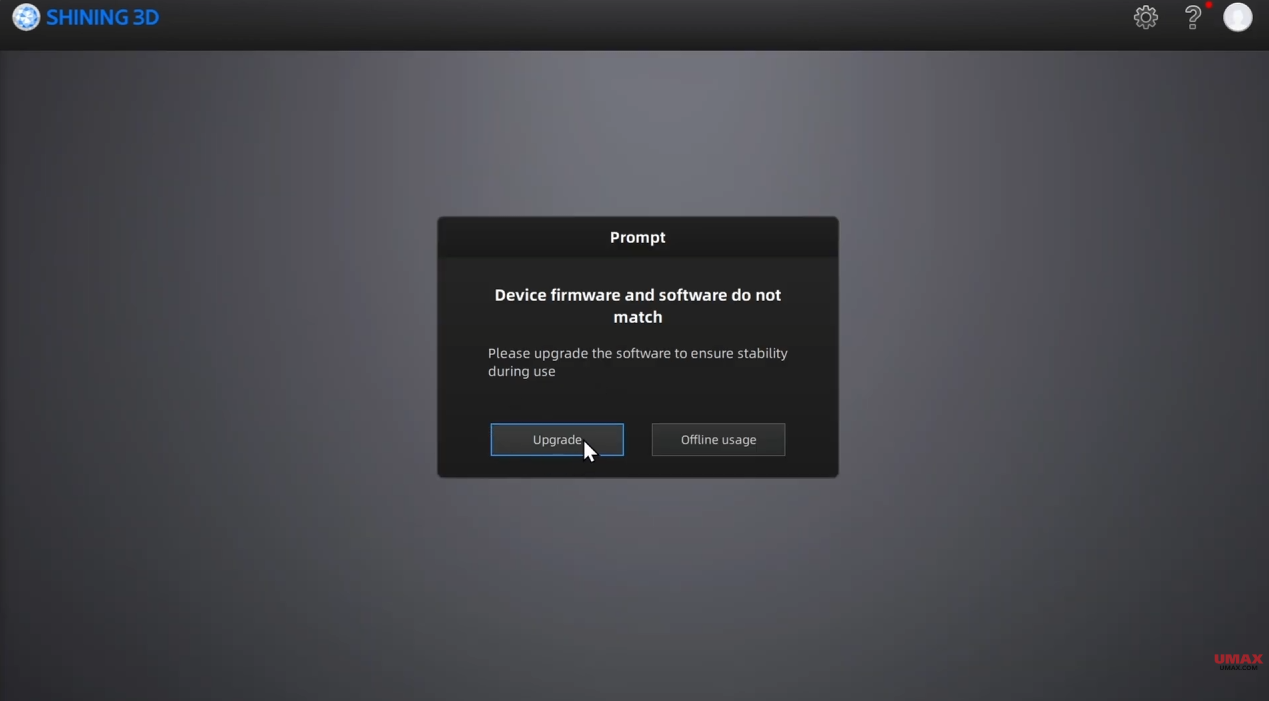
Another common issue involves scanners that briefly connect before disconnecting or failing during firmware updates.
This is often caused by corrupted drivers, incomplete firmware installation, or interrupted update procedures.
Common troubleshooting workflows typically begin by completely uninstalling previous drivers, restarting the system, reinstalling the latest official software package, and allowing firmware updates to complete without interruption. But more commonly firmware mismatches can also occur after installing new software versions. In most cases, allowing the scanner firmware to fully synchronize with the latest software resolves recognition issues quickly.
Understanding Tracking Loss
Tracking instability is one of the most misunderstood aspects of handheld 3D scanning.
Most handheld scanners maintain alignment by continuously recognizing geometry, texture, or markers across the object’s surface. When there is insufficient variation or too much repetitive geometry, the scanner can lose positional awareness.
Flat surfaces, symmetrical objects, glossy materials, and featureless geometry are particularly difficult because the scanner has fewer visual references to follow.
The troubleshooting demonstration highlighted several professional techniques for improving tracking reliability. Slowing scanner movement, staying within the recommended scanning distance, beginning scans from feature-rich areas, re-entering previously scanned regions after tracking loss, and changing scan angles to expose more geometry can often restore stability immediately without changing scanner settings.

Markerless vs Marker-Based Scanning
Our video also explored one of the most important workflow decisions in handheld scanning: choosing between markerless and marker-based tracking.
Markerless scanning prioritizes speed and convenience by relying entirely on natural geometry and surface texture. Objects with sharp edges, engraved features, holes, organic shapes, or strong surface variation generally scan very well without markers.
However, smooth, glossy, symmetrical, dark, or reflective surfaces often struggle in fully markerless workflows because there are not enough unique tracking references.
Marker-based workflows provide greater stability by introducing fixed external reference points across the scanning area.
The guide demonstrated that professional workflows often combine both approaches. Operators may begin markerless to quickly capture large geometry, add markers if tracking weakens, and then finish difficult or precision areas using marker-assisted alignment. This hybrid workflow improves both efficiency and scan reliability.
Lighting Conditions and Scan Quality
Lighting conditions have a major impact on scan quality, especially for infrared and structured-light scanners.
Direct sunlight, reflective overhead lighting, and inconsistent illumination can introduce noisy data, unstable tracking, or incomplete geometry.
The troubleshooting guide emphasized the benefits of soft indoor lighting, diffused illumination, and stable environmental conditions while avoiding reflective hotspots whenever possible.
Lens cleanliness also plays a surprisingly important role. Even small dust particles or smudges on scanner sensors can reduce scan clarity and introduce unwanted noise into the final data.

Difficult Materials and Surface Preparation
Dark and reflective materials continue to be among the most difficult surfaces for handheld scanners to capture accurately.
Glossy plastics, polished metal, black rubber, and transparent materials can interfere with projected scanning patterns and reduce tracking reliability.
For difficult surfaces, removable scanning spray remains one of the fastest and most effective professional solutions. Applying a temporary matte coating dramatically improves surface readability while helping the scanner maintain stable geometry acquisition.
In industrial workflows, scan spray is commonly used on automotive components, metal parts, mold inspection projects, glossy plastics, carbon fiber surfaces, and reflective industrial equipment where standard scanning methods may struggle.
Calibration and Measurement Accuracy
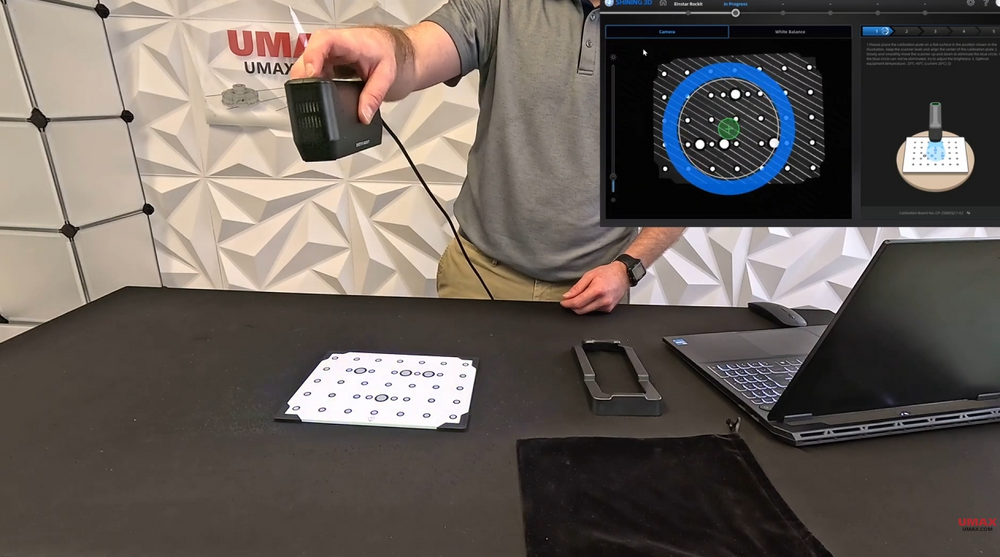
When dimensional accuracy appears inconsistent, calibration is often the next step.
Proper calibration ensures that the scanner’s cameras and projection systems remain geometrically aligned for accurate measurement capture.
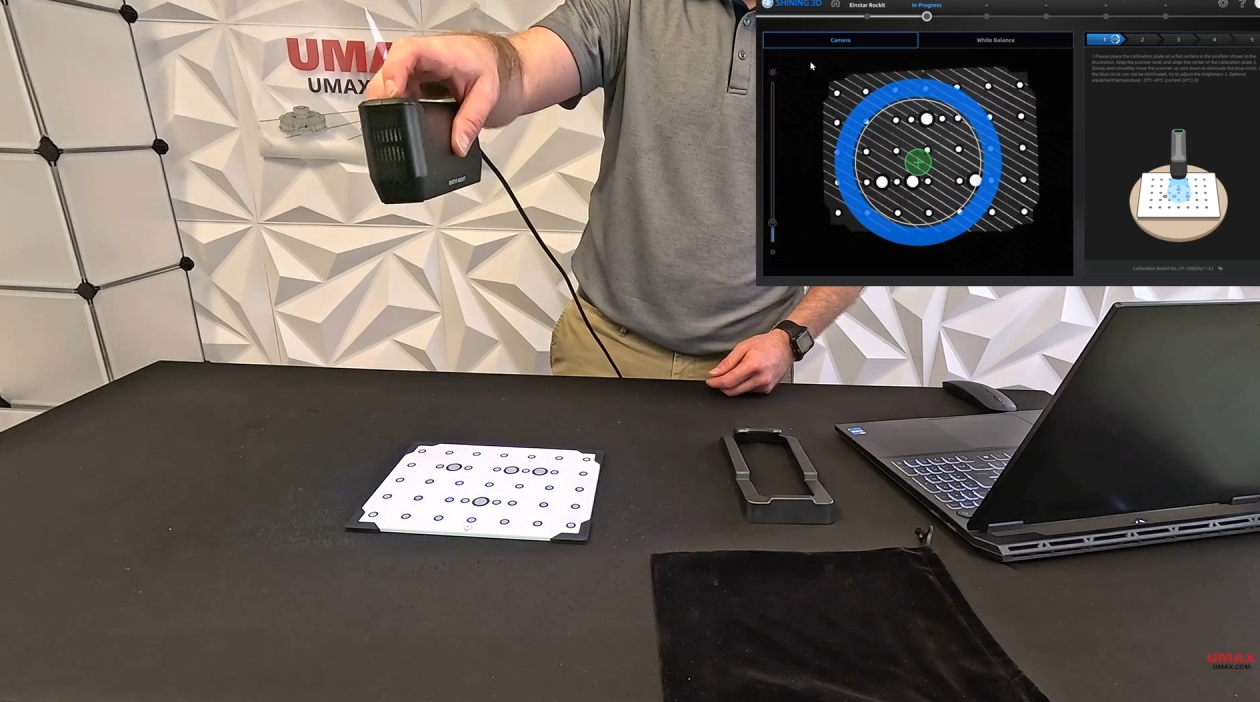
The troubleshooting workflow stressed the importance of using stable lighting, keeping the calibration board flat, following calibration instructions carefully, and avoiding movement during the process.
Consistent calibration is especially important for reverse engineering, design, and measurement-focused workflows where repeatability matters.
Building a Stable Scanning Workflow
One of the biggest takeaways from the troubleshooting guide is that reliable scanning is usually the result of workflow optimization rather than a single setting change.
Stable scanning performance depends on combining proper hardware setup, correct GPU configuration, controlled lighting, good tracking references, appropriate scanning technique, clean sensor maintenance, and correct software and firmware versions.
As handheld 3D scanning becomes more common across engineering, manufacturing, design, and content creation industries, understanding these workflow fundamentals becomes just as important as understanding the scanner itself.
The Einstar Rocket troubleshooting demonstration provides a strong example of how professional scanning environments approach problem solving methodically instead of treating every issue as a hardware failure.